Arranging apps on your Huawei phone can make it more user-friendly and efficient. Whether you’re trying to declutter your home screen or make certain apps easier to access, customizing your phone layout is key. Understanding how to move, organize, and find apps faster will help you personalize your device to fit your needs. This guide helps you manage your apps by showing you how to move single or multiple icons, create folders, and use smart layouts. Let’s explore easy ways to arrange apps on your Huawei phone to keep your home screen clean and organized.

Basic Ways to Move and Arrange Apps
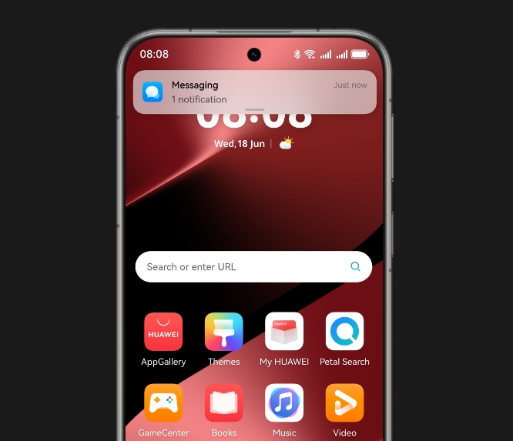
Customizing your Huawei phone starts with moving and arranging your apps to suit your preferences. If you’re looking for a clear walkthrough on How to arrange apps in huawei, mastering these basic steps will give you full control over your home screen layout.
How to Move Single App Icons
Moving app icons on your Huawei phone is straightforward. To begin, press and hold the app icon you wish to move until it enlarges slightly. Once in move mode, drag the icon to your desired location on the home screen. You can move the icon up, down, or across screens by dragging it to the edge of the screen. When you find the perfect spot, release the icon to set it in place. This method allows you to reorder and prioritize your most-used apps easily. For finer alignment, use the grid to drop apps into neatly organized slots, making your home screen visually pleasing and functional.
How to Select and Move Multiple Apps
Sometimes, a comprehensive rearrangement is necessary, and Huawei makes it simple to move multiple apps at once. Start by pressing and holding one app icon until it enters move mode. Without releasing your finger, use another to tap additional apps you wish to move; they will stack together. Drag the group to your desired location or another page of the home screen. Release to drop all selected apps at once. This technique is especially useful for redistributing your apps in a balanced way, ensuring you can categorize or prioritize them quickly without dealing with individual icons repeatedly.
Align Icons and Pages on Your Home Screen
Achieving a neat home screen involves aligning your icons and pages uniformly. Huawei devices often support auto-alignment features. To align icons, tap and hold a blank area on the home screen to access settings. Look for options related to home screen settings, where you can choose auto-align or organize. This setting arranges icons in a grid for a symmetrical appearance. You can also add or delete entire pages by pinching the screen with two fingers, then dragging pages to reorder them or tapping a ‘Plus’ icon to create new ones. Clean alignment facilitates easy navigation and effective use of available space.
Smart Organization With Folders and Layouts
To streamline your Huawei phone, create folders and use various layouts. It simplifies access and keeps related apps grouped together.
Create and Use Standard Folders
Creating folders on a Huawei phone is an intuitive way to manage apps. Start by selecting and holding an app icon until it enters move mode. Drag the icon over another app icon you want to group it with; a folder will automatically be created. Tap the folder to open it and see the apps inside. You can add more apps by dragging them into the folder. This method categorizes apps, such as grouping social media apps or productivity tools together. Accessing related apps becomes quicker, and the home screen looks less cluttered. Folders can be renamed by tapping the default folder name and typing a new one for better organization.
Name and Manage Folders for Quick Access
Effective folder management in Huawei not only clears clutter but also improves app access speed. Open an existing folder by tapping it, then click on the folder name to rename it. Assign categories that make sense, like “Work” or “Games.” To rearrange apps within folders, tap and hold an app, then drag it to reorder as needed. Remove unwanted apps from folders by tapping and holding them until you can drag them out onto the home screen again. Regular management ensures folders remain relevant and enhances the efficiency of accessing different apps, while a thoughtful naming convention aids quick identification.
Tips for Faster App Finding and Order
Finding and ordering apps efficiently can enhance your user experience. Discover sorting options and management features for seamless access.
Alphabetical Sorting Options and Manual Ordering
To find apps quickly, consider arranging them alphabetically. On Huawei phones, navigate to the home screen settings by tapping and holding a blank space. Select the ‘Sort’ option to arrange apps alphabetically. This option is beneficial when you have numerous apps and need a logical organization. For greater control, you might prefer manual ordering. This approach lets you prioritize apps based on usage frequency instead of alphabetical order. Drag and move apps with the press-and-hold method to customize their display. Choosing between alphabetical and manual sorting aligns your app layout with your preferences and user habits.
Use App Drawer and Home Screen Features
The app drawer on Huawei devices serves as a comprehensive list of all installed apps. Access it by swiping up from the bottom of the home screen. Here, apps are often sorted alphabetically or by installation date by default. You can quickly search and launch any app. To enhance efficiency, use home screen widgets for instant access to frequently used apps or info. Interactive widgets, like weather or media players, can also be added by pressing and holding on a blank space to access the widget menu. This customization minimizes navigation and maximizes functionality, making every interaction intuitive.
Conclusion
Organizing your Huawei phone apps is straightforward and rewarding. By moving app icons and creating folders, you enhance your phone’s user experience, making apps more accessible and your home screen visually appealing. Take advantage of features like the app drawer for efficient navigation. Regularly manage and sort apps to maintain functionality and order, resulting in a device that reflects your preferences and needs. Ultimately, an organized home screen not only saves time but also simplifies your daily mobile interactions, allowing you to focus on what truly matters.
